
Stream Deck (Companion)
Run Show Remote from physical buttons using Bitfocus Companion and an Elgato Stream Deck.
Get the base URL
A manager opens
Settings→Show Remote API→Generate key, then tapsCopy. Send that link to your tech. Anyone with it can control your screens, so treat it like a password.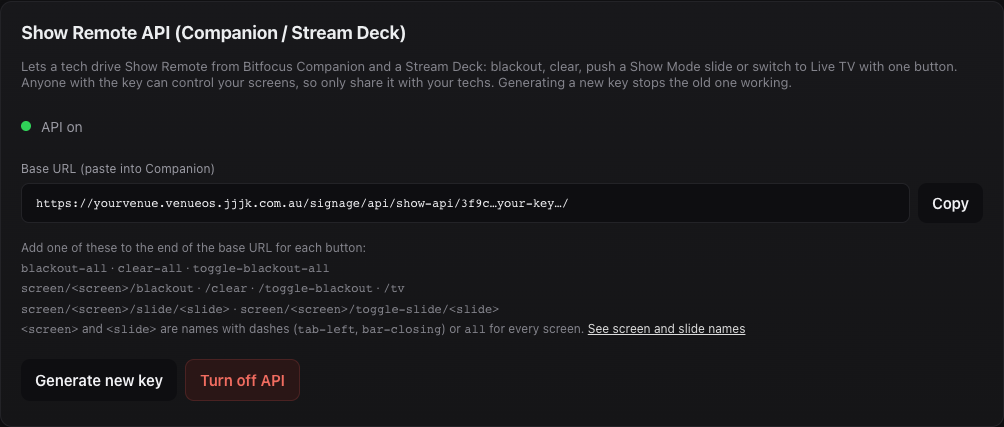
The Show Remote API card in Signage Settings. Add it to Companion
In Companion, go to
Connectionsand addGeneric HTTP Requests. Paste the link into itsBase URL. Companion just needs internet access. It can run on the venue network or anywhere else.Make a button
Add a button, then add the connection's
GET(orPOST) action. For the URL, type the command, for exampletoggle-blackout-all. Press the button and the screens change within 2 seconds, the same as tapping in Show Remote.Commands
blackout-all·clear-all·toggle-blackout-allscreen/tab-left/blackout·/clear·/toggle-blackout·/tvscreen/tab-left/slide/bar-closingpushes a slide.screen/tab-left/toggle-slide/bar-closingpushes it and sends the screen back to normal on the next press.
Useallas the screen name to hit every screen. Stage Monitors are skipped unless you name them.Find the names
Screen and slide names are written in lower case with dashes instead of spaces:
TAB Leftbecomestab-left. TapSee screen and slide nameson the Settings card (or openstatuson the base URL) to see the exact name for every screen and Show Mode slide.Light up buttons (optional)
status/allreturnsblackoutornormal.status/tab-leftreturns that screen's mode:slide,blackout,tv,schedule,stageortakeover. A tech can poll these to change button colours.